8. Repeaters and labels
Repeaters
A Repeater prints a free-form block of elements once for each item in a list, stacked from top to bottom. It is a table without the grid: inside the block you can place text, barcodes, images, boxes and checkboxes anywhere you like.
Use a repeater when each item needs more than a row of cells:
- pick lines with a location barcode and an item barcode,
- one bordered "card" per handling unit with its own checkboxes,
- a strip of bin location labels.
Build a repeater
- Drag Repeater from the Insert tab into the Body.
- In Properties → Repeater → Data, type the list path, for example
picks. - Resize the repeater box. The box height is the height of one item. The width is the width of every item.
- Drag elements into the repeater box: text, barcodes, lines and so on. Position them relative to the box.
- Inside the repeater,
itemis the current item andindexits number (from 0). Bind like this:{{ item.location | A-02-A-01 }}. - Optional: set Gap to add space between items.
The repeater grows by one block per item and splits across pages between items, so a block is never cut in half.
Example: pick lines with two barcodes.
 ┌───────────────────────────────────────────────────────────────────────┐
 │ {{ index + 1 }}  LOCATION {{ item.location }}   ║║│║║│║  (Code 128)     │  ← repeater box = one pick line
 │    {{ item.sku }}  {{ item.description }}        ║║│║║│║  (Code 128)     │
 │    QTY {{ item.qty }} {{ item.uom }}      ☐ picked   short: ____          │
 └───────────────────────────────────────────────────────────────────────┘
Lay out one item, and the repeater prints it for every pick. The built-in Pick List template in the gallery works this way.
Note: Repeaters keep the order of the data. Unlike tables, they have no Sort by. Ask your integrator to send pick lines in pick-path order, or use a table if you need sorting.
Note: Elements inside a repeater item don't grow. Long text in a repeater should use Ellipsis (…) or Shrink to fit overflow.
Labels
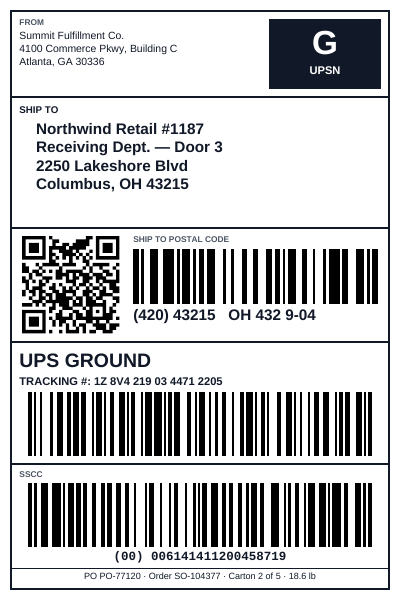
A 4×6 shipping or pallet label
Thermal labels are one label per page:
- On the Report tab, set Size to Custom, Units to Inches, Page width
4and Page height6. - Set the margins to about
0.1in. - Turn off Report Header and Report Footer, and usually Page Header and Page Footer too. Put everything in the Body.
- Use thick lines (1.5–2 pt) to divide the label into zones: ship from, ship to, postal barcode, carrier and tracking, SSCC.
- Use large type for what people read from a distance: the ship-to city (16–20 pt bold) and the SSCC (12 pt).
See Barcodes for the SSCC barcode. The gallery has ready-made Shipping Label 4×6 and Pallet / LPN Label 4×6 templates.
One label per carton in one PDF
To print labels for every carton of a shipment in one PDF, use the Records setting instead of a repeater:
- On the Report tab, under Records, set One copy per to the list of cartons, for example
cartons. - Design the label for one carton. Inside the label, the carton is the top of the data, so bind directly:
{{ sscc }},{{ shipTo.name }}. - The render produces one label page per carton.
See Batches for details.
Location (bin) labels on sheets
The Location Labels template prints rack labels as full-width strips on Letter paper using a repeater. Each item shows the location code in large type, a direction arrow and a Code 128 barcode, and the strips are cut apart after printing.
For multi-column sheets such as 3 × 10 address labels, repeaters stack vertically only. Design one repeater item as a row of three labels, and have your
system send the locations in groups of three ({ "row": [loc1, loc2, loc3] }). Bind each label in the row to item.row[0], item.row[1] and
item.row[2], and set the repeater Gap to the sheet's vertical pitch minus the label height.
Tip: Measure the label stock's top margin, label height and vertical pitch with a ruler, or take them from the manufacturer's template, and set Designer → Units to inches or millimeters. Print one test sheet on plain paper and hold it against the label sheet before printing labels.