13. Preview, export and rendering
Preview PDF
Preview PDF renders your design to a real PDF in the browser, using the same engine as the render service, and shows it in a window.
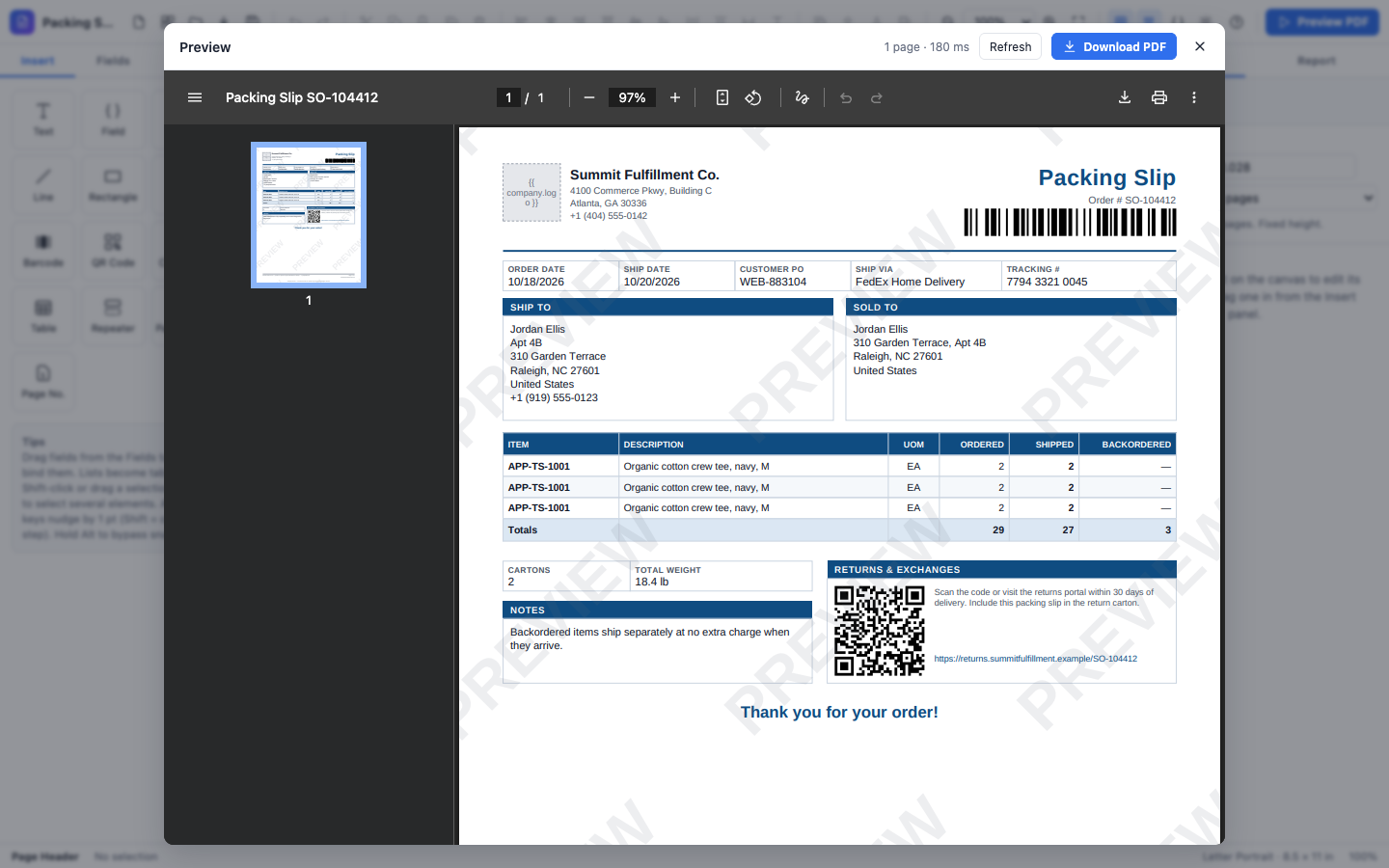
The preview window shows:
- the page count and how long the render took, for example 3 pages · 180 ms,
- Refresh, to render again after changes, and Download PDF,
- a list of warnings under the PDF, if any. Each warning names the element and the problem. See what warnings mean.
Close the preview with Close (Esc) or the Esc key.
How the preview differs from a real render
The designer has no data, so the preview uses placeholder mode:
| In the preview | In a real render |
|---|---|
Bindings show their preview text, or {{field}} when there is none |
Bindings are replaced by the data |
| Tables and repeaters show 3 placeholder rows (2 groups × 2 rows when grouped) | One row per data item |
| Visible if counts as true, so every element shows | Elements show only when their condition is true |
A checkbox is checked only when Checked if is literally true |
Checked when the condition is true |
| A barcode encodes its preview text, or a valid sample value for its format | Encodes the data |
| Every page carries a light PREVIEW watermark | No watermark with a valid license (Licensing) |
| An image bound to data shows a gray box labeled with the binding | Shows the image |
page, pages and now are real |
Real |
Everything else is identical: fonts, sizes, positions, wrapping, borders, page size, headers, footers and page breaks. To check how a long table breaks across pages, render with real data (see below), or temporarily raise Min. rows on the table.
Tip: Use Show expressions instead of preview text (
{ }in the toolbar) to check all your bindings at once on the canvas.
Saving and exporting templates
| Action | What happens |
|---|---|
| Save (Ctrl/Cmd+S) | The designer gives the template to your application, which stores it, for example as the BOL template for a warehouse. A Saved message confirms it |
| Export template JSON | Downloads the template as <name>.json |
| Open template JSON | Loads a .json template file. Invalid files are rejected with a message such as Invalid template: page — Required |
A template file contains the whole design: page setup, bands, elements, named styles, embedded images and custom fonts. It contains no customer data.
Tip: Export a copy before making big changes. Template files are plain text and can be stored in version control.
Rendering PDFs with data
Your WMS, ERP or another system produces the final PDFs by sending the template and the data to the render service. Usually this is automatic, for example when a shipment is confirmed. The service returns the PDF.
For testing, you can render a template yourself with curl (ask your administrator for the address):
curl -sS -X POST http://localhost:8080/api/v1/render \
  -H 'Content-Type: application/json' \
  -d "{\"template\": $(cat bol.json), \"data\": $(cat bol-data.json)}" \
  -o bol.pdf -D -
The -D - part prints the response headers:
| Header | Meaning |
|---|---|
X-Page-Count |
Number of pages |
X-Render-Warnings |
Number of warnings, such as missing images or expression problems. 0 is what you want |
X-License-Status |
valid = clean output. Anything else (trial, expired, missing, invalid) means watermarked |
To see the warning texts, add ?format=json to the address. The response then contains the PDF as base64 plus a warnings list.
Batches: one copy per record
To print many documents at once, such as all BOLs for a day's loads or a label for every carton, set up the template once and send a list:
- On the Report tab, under Records, set One copy per to the list's path, for example
shipments. - Design the document for one record. Inside, bindings refer to the record directly:
{{ bolNumber }}, not{{ shipments[0].bolNumber }}. - Your system sends
{ "shipments": [ {…}, {…}, {…} ] }.
The PDF contains one complete copy per record, one after another. In each copy:
{{ page }}and{{ pages }}restart: the second BOL says "Page 1 of 2", not "Page 4 of 5".recordIndexis the copy's number (from 0), andrecordis its data.- Report header and footer print once per copy.
Note: The preview in the designer shows a single copy.
Document properties
On the Report tab, under Document, you can set the PDF's PDF title, Author, Subject and Keywords. PDF viewers show these in the
document properties, and the title appears in the viewer's title bar. The title can contain bindings: Bill of Lading {{ bolNumber }}.